MFA Enrollment - SCC Employees
Need MFA Help?
Contact the Help Desk for assistance or to make an appointment.
Service Hours:
Monday – Friday
8:00 AM – 4:30 PM
helpdesk@solano.edu
(707) 864-7000 Ext: 4690
Self‑Help MFA Resources
Multi-Factor Authentication (MFA) helps protect your Solano College account and our campus community from cyber threats by adding an extra layer of security beyond your password.
Effective November 12, 2025, MFA is required for all Solano College employees. This requirement helps ensure that even if a password is compromised, unauthorized access to employee accounts and college data is prevented.
All employees must be enrolled in MFA and keep at least one MFA option set up and ready to use. Please review the steps below to enroll in MFA or confirm that your current setup is working properly.
Get Started: Microsoft Authenticator App Setup in 3 Easy Steps
This is the recommended setup option for most employees.
Step 1: Install the App
Download the free Microsoft Authenticator app.
Step 2: Enroll Your Account
Sign in to your SCC account and follow the MFA enrollment prompts.
Step 3: Verify and Save
Complete your verification and confirm MFA is working by signing into an SCC system.
Watch: How To Setup Microsoft Authenticator App (MFA)
Quick Setup Guides
Download step-by-step instructions for your preferred MFA method:
Frequently Asked Questions
MFA adds an extra layer of protection by verifying your identity using two methods: something you know (your password) and something you have (like your phone). This helps prevent unauthorized access even if your password is compromised.
No. MFA is required for all SCC employees under Board Policy 3910 and Administrative Procedure 3910.2. All faculty and staff must use MFA to access college systems and services.
- Microsoft Authenticator App (Recommended): Free, secure, and convenient. Approve sign-ins instantly with push notifications or code confirmation.
- SMS Text Message: Receives a 6-digit code by text. Easy to use but less secure and may be phased out by Microsoft.
- YubiKey: Hardware-based security key. Very secure but requires carrying a physical key and covering the ~$50 replacement cost if lost.
- Account info: Stored on your device and removable anytime.
- Usage data: Anonymous app performance details, optional via Settings.
- Diagnostic logs: Only shared if you select “Send feedback.” Used for troubleshooting only.
Adding or removing devices from your account is simple.
Add a new account to the Microsoft Authenticator app using the same steps you followed during initial setup.
The Microsoft Authenticator app can generate offline passcodes. Select “Enter a Passcode” when prompted, then open the app to view the 6-digit code for sign-in.
- Apple devices: iOS 11.0 or later
- Android devices: Android 6.0 or later
You may request a YubiKey if you prefer not to use a personal phone. Before requesting, please note:
- You must carry the YubiKey with you when logging in.
- Replacement cost (~$50) is the employee’s responsibility if lost.
- Setup requires additional time and is less convenient than the app.
To request a YubiKey, contact the Help Desk at helpdesk@solano.edu.
No. The Help Desk will never ask for your password or your Microsoft Authenticator passcode (whether from the app or via SMS). If you receive such a request, do not respond — it may be an attempt to gain unauthorized access to your account.
When you request assistance, the Help Desk may send a legitimate Microsoft Authenticator prompt to your phone as part of verifying your identity. This prompt will include a support request message and a confirmation code that the Help Desk may ask you to read back to confirm your identity.
No. MFA will never ask for your user ID or password. If you receive a message, call, or email requesting your login information, do not respond--it is not legitimate and may be a phishing attempt. Always sign in directly through official Solano College login pages.
If you experience login errors (such as “Invalid Username/Password”) or repeated sign-in prompts, clearing your browser cache and cookies can often resolve the issue.
Your browser may retain outdated session information after a login timeout or system update. Clearing cached data removes these stale sessions and allows the application to establish a fresh, valid login.

Follow the steps below for your browser.
How to clear cache and cookies
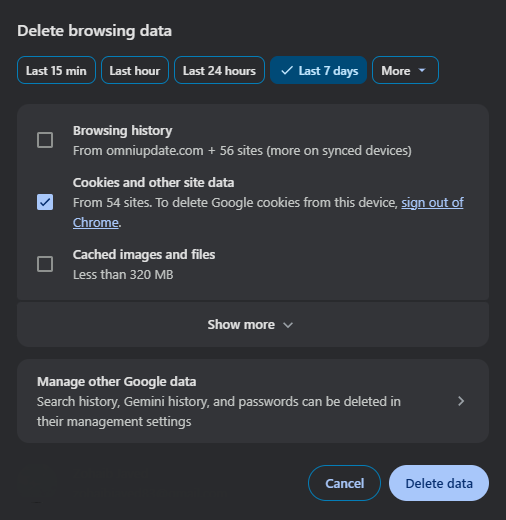
Google Chrome
- Hit the Ctrl+Shift+Delete buttons on your keyboard.
- Select "Last 7 days" or "All Time" based on the date of your last successful login.
- Select the checkbox "Cookies and Other site data."
- Click "Delete Data"
- Close all Chrome windows and reopen the browser.
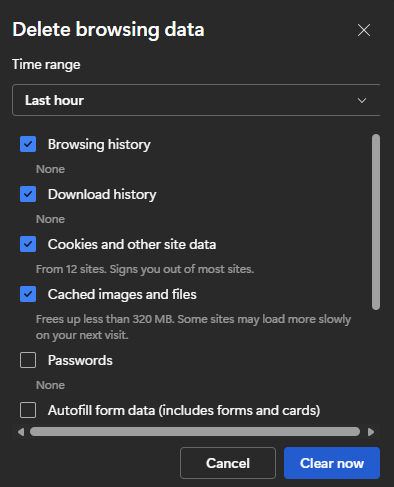
Microsoft Edge,
- Press Ctrl + Shift + Delete on your keyboard.
- Select Last 7 days or All time.
- Check Cookies and other site data.
- Click Clear now.
- Close all Edge windows and reopen the browser.
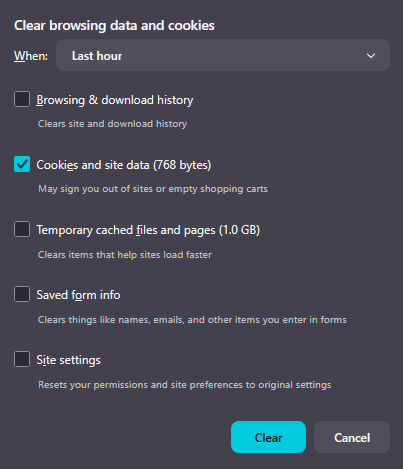
Mozilla Firefox
- Press Ctrl + Shift + Delete on your keyboard.
- Select Last 7 days or All time.
- Check Cookies and other site data.
- Click Clear.
- Close all Firefox windows and reopen the browser.
Once stale cookies are cleared, the error should no longer appear.
If the issue continues after clearing your cookies, please submit a Help Desk ticket so our team can assist you.